Showing posts with label writing. Show all posts

Sunday, March 7, 2021

Malchow's Tech Bytes ~ March 8th ☘️

 Hi all! I'm excited to share that my weekly Tech Bytes is back up and running!  Thank you for being patient as I took some time away due to my dad's illness. My dad was diagnosed with pancreatic cancer in late October and mid-January we found out that continued treatment was no longer an option. With that news, my siblings and I rallied together to help take care of my dad for whatever time he had left. Unfortunately, from the time we found out until the time of his passing was less than a week. It's been a rough few months of many ups and downs as we are all learning to live in this new normal of dad not being around and helping mom to navigate unchartered territory. There has been a lot of soul searching and reflecting on the importance of family and work/life balance over the past couple of months and while my intent is not to write a novel or get too preachy, I will simply say, that life is too short... enjoy all of the moments you have with your loved ones.

With that said, I am working to get back in the swing of things and to keep the weekly newsletter and monthly EpicPals projects running. Thank you so much for sticking with my through this difficult time and for helping me to get through this time with your continued support, emails, texts and kindness! It has been soooo much appreciated!!! 

Click image above to view larger and access the links


Wednesday, February 21, 2018

SNOWpinions

I had a blast over the past couple of weeks helping the first graders with their special SNOWpinion writing pieces. After talking with the first grade teachers, it was decided that we would have students type their pieces on a collaborative Google Slides document in order to get some authentic keyboarding practice while also exposing them to working on a collaborative document. This was the first time these kiddos have experienced working on a collaborative document and with a little careful planning, and a pinch of patience, everything went off without a hitch. Having an index slide definitely made this endeavor super easy.


 Headache Saver:  Make sure that all of your students are on their slide and that the cursor is blinking on the frame they're going to write on. We had a few deleted slides and kiddos working on others' slides in one class as they didn't click on their frame before starting.

After everyone finished their writing, we saved the file as a PDF and then printed off the file so each student could display their writing in the hallway along with a snowman art project they had created.


During our planning time, the teachers also shared that one of their objectives was to have students present their pieces as they wanted to focus on presentation skills such as voice volume, clarity, and speed. After some discussion, we decided that we would have students use DoInk's Green Screen app to share their piece to add an element of authenticity and fun. Students choose the background they wanted and then bundled themselves up to create their SNOWpinion presentations. The end results were adorable and the students did a fantastic job practicing and preparing for their speeches. As students finished, they uploaded their SNOWpinion to Seesaw where they were able to share it with their peers as well as their parents. 

 Green Screen Tip:  Have all of your background images saved to one iPad so you're ready to go. We did all of our videos "live" right in DoInk with the background image already inserted. As you finish each recording save it to the camera roll for ease of uploading it to Seesaw, YouTube, etc later on. 


 Add-on Alert:  After all of the students' were finished, I imported their DoInk movies into iMovie. (This was super easy to do because all of the videos were on one iPad!) I added a title frame from our shared Google slide deck and some background music and then shared the finished movie with the teachers for them to share with their students as well as parents via Seesaw. We also talked about how this video could be used at conference time by having it playing on an iPad on a continuous loop outside of their classrooms for parents to enjoy while they are waiting for their child's conference. Here's what the finished video looked like:

Tuesday, January 17, 2017

#GoPackGo! Letters to Lambeau campaign


Looking to help cheer on the Packers? Check out this Letters To Lambeau campaign. There's even a pre-done template for your youngest writers. Want to get your letters there fast (snow day delays?!) you can email all of your submissions in if you'd like! Check it out and support the Packers goal of running the table! Woot! Woot!


Friday, April 24, 2015

Poetry Month, Bubbles and Word Clouds


April is National 
Poetry Month!

We've been working on learning a little bit more about poetry this month and what better way than to blow bubbles! Well, actually we blew bubbles to experience the different colors, sounds, and feel of bubbles which in turn gave us background knowledge for our poems.
We used a template for our poems which had us thinking about adjectives to describe our bubbles, action words and similes. 
After writing our poems we used ABCya's Word Cloud app to showcase our poems in a different format. We're planning to print our poetry in both "normal" format and word cloud format for all to enjoy at our upcoming Writer's Tea.

Tuesday, April 14, 2015

Informational Research and Book Creator

We have been working on the genre of informational writing over the past month and just finished up a piece on coyotes. I have a 6 pack and matching big book about coyotes that is at a 1st grade level that works wonderfully for this writing project. 

I started by introducing the big book in whole group. We then read the 1st several pages together and took notes about things that we found interesting or that was new information for us. After modeling this format for a couple of days, I passed out the small book versions and partnered students up to continue reading and taking their own notes. 
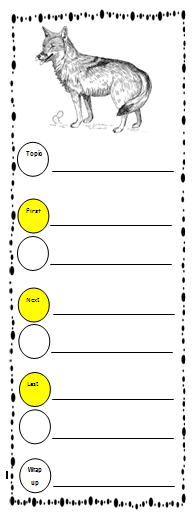
After groups finished reading, they took their post-it notes and sorted them based on like topics. From their they created their plan sheet like the one to the right. Students had to have 3 details (yellows) and 3 elaborations to accompany their details along with a topic sentence and conclusion/wrap-up sentence. I've taught my kiddos to just write "blurbs" on their plan sheets or just enough info to remember their main idea. This has really helped to eliminate copying the authors words verbatim. As students finished their plan sheet they then used it to write their informative piece. 

After writing their piece, editing for capitals and periods, reading it to a friend and then checking in with me, they were able to publish their piece using the Book Creator app. This is the 1st time we used this app (last year we used Doodlecast Pro to publish) I created a checklist for students to follow to give them a little more direction while working independently. The checklist was helpful for most and I'll definitely use it again.We had a few small glitches along the way, nothing earth shattering, but we all learned together and I'll make a few tweaks for next year. 
Students had their choice on each page of either creating their own picture or going to Pics4Learning or Photos for Class to chose real life images. Many chose to go onto the sites to get actual images but we still had a good handful of kiddos also create their own pictures. As we have been talking about nonfiction text features over the past months, I added the box on the right of the checklist to challenge my kiddos to add some of these features as appropriate to their book.Obviously photographs and drawings were already embedded. I did have some kiddos add labels to their drawings and also some captions.
For those students who had the extra time, I included a bonus page in which they could do an "About the Author" page and include a selfie. I had a template for them to follow as we have not talked much about this type of page previously. The template basically had them write their name, how old they are, what grade they are in and 2 things they like to do. 


Sunday, May 18, 2014

Writer's Tea

Three of our 1st grade classrooms hosted our first ever Writer's Tea on Friday and I can tell you that it will definitely be an annual tradition for my classroom!!! 


We started by sending an invite home to parents about a month in advance and planned our celebration for the last hour of the day on a Friday in hopes that parents could make arrangements to get off of work or leave a little early. Grandparents were also invited as we wanted every student to have at least one person to come and celebrate with them. 
We served punch and cookies to make the event all the more special.

In the grand scheme of things, this was a relatively easy event to get ready for. I saved my kiddos' writing all year long... every single piece of writing! Let me tell you, it is eye opening how much writing we do in the course of a year when you have to find a place to store it all!  A few days before the event, I began passing back all of my kiddos' writing. It was fun to listen to them as they got certain pieces back and they would say things like, "I forgot about this one" or "Oh my gosh, I can't even read this" The latter comment was the best as they really were able to appreciate how far they have come as authors!


After getting our pieces back, we needed something large enough to hold all of our pieces as some of them were larger craftivites. I wanted something that would make it easier for them to tote their writing to a place in the room and that would also hopefully serve as a "one-stop storage spot" that would have special memories for them and their parents. I am hoping that parents won't just throw all of their child's hard work away. My solution was to fold a piece of tagboard in half and to glue students' 1st day of school pictures and a matching end of the year picture to this folder. (It was amazing to see how much some of them have changed over the course of the year!) Students then decorated their portfolio however they wished. They weren't overly fancy, but each student's was unique and they had a lot of fun designing them. It also gave them even more ownership of this event.

Finally, students filled out an About the Author paper to share with their visitors. This ended up being the very first piece in our portfolios that student's shared with their visitors. You can click the link above to download a free copy for yourself if you're interested. 

When the big day finally came, my kiddos were beyond excited! They asked all day long when the Writer's Tea was starting. It was fantastic to see how excited they were and to feel the energy in the room. Every student in my class, except one had at least one adult in attendance. Knowing ahead of time that this student, and a few others from the other 2 classes didn't have a visitor, we made arrangements with other staff members in our building (Assistant principal, reading specialist, LMS, etc) to come and be a special visitors for them so nobody was left out.


I have to say, the event was fantastic and went off without a hitch. The students were in charge and I was able to mull around the room, take pictures, chat with our visitors and sit back and watch as students were the teachers. Throughout the course of the hour, they shared all of the writing in their portfolios, shared the stories they had done digitally on their iPads, enjoyed a cookie and punch, and also shared a few projects in the hall, including our Global Art Project. I was shocked when we were 3 minutes from the dismissal bell ringing and I still had 3/4 of my class and their visitors in my room!! I told them all to enjoy and not be in a rush and many stayed even longer. All together, most of my students spent about 45 minutes to an hour with their visitors.


As I said above, this will definitely become an annual tradition for me. The only change I think I may need to make is to plan for a full hour next year. Three days later, I am still smiling about how well it went and the sheer joy that my students experienced getting to share all of their hard work!

Saturday, May 10, 2014

Word Clouds


Have you tried the new app by ABCya called Word Clouds? It is currently free and is phenomenally easy to use! If you are not familiar with word clouds the idea is that you get a graphical representation of your text. Words that are used in higher frequency are represented larger. 
This app is phenomenally easy to use. My kiddos learned how to use it in about 5 minutes. The next day, they taught another first grade class how to use the app. If a first grader can teach someone how to use it, you know it's easy!
We used this app to create a word cloud for our moms as part of their Mother's Day gift. We did a bit of brainstorming together on chart paper to get the ideas flowing. Students were then asked to write the name they call their mom at the top of their paper (mom, momma, mommy, etc). They then numbered their paper from 1-10 and thought of 10 (or more if they could) words that would describe their mom.
When putting their words into the app, each student typed the word "mom" four times so that it would appear larger than the others and then proceeded to type in their other words. When they were done they were able to choose the font, color and directionality of their words.
These turned out wonderful and were a nice addition to our Mother's Day gifts.


Sunday, April 27, 2014

Continent research


During our writer's workshop, we have again been working on informational (research-based) writing. During Spanish, we have been learning the names of the continents and their locations so it seemed only fitting to dig in a bit more to find out some special facts about each one. To do this, each child wrote down their top 3 choices of continents they'd like to learn more about. I then went through their requests and paired students up that had similar requests paying close attention to partnering my lower readers with a classmate that would be able to help them out. 

Students then read a book about their continent and took notes on post-its as they went (My class LOVES post-its!). I asked them to find at least 4 interesting facts about their continent. We used the Rookie Reader: Read About Geography series. The readability of these is great for end of the year 1st graders.

Students then worked with their partner(s) to write a paragraph which included a topic sentence, details (their facts) and a wrap up sentence about their continent using their information. 

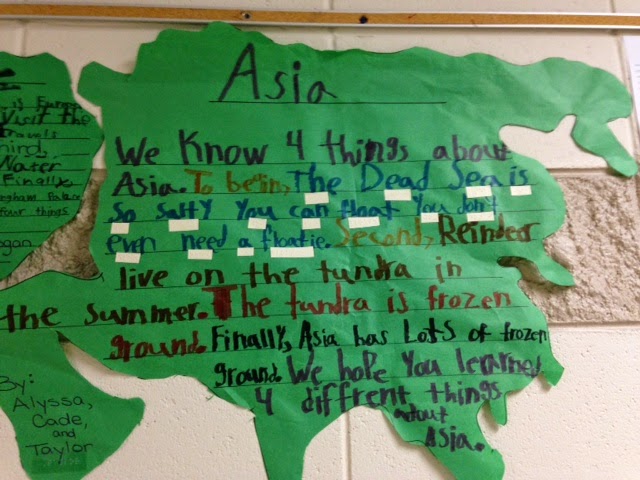
We are now working to rewrite our pieces on paper shaped like the continent we researched. When we are done, we plan to hang them up in the hallway in the correct locations to create a gigantic map of the world. 


Update: Here are a few of the finished continents. I really love how they turned out and the kids did a fantastic job working together as a team. 


I have a student who is legally blind and is learning to read and write braille this year. This was a great project for him as well as his partners read the book out loud. He worked to take notes of his own using his brailler as you can see to the right. 
When his group wrote their paragraph, he wrote his sentence in braille and we glued it below the words from his sentence so everyone can experience it in braille as well. This little guy has done a tremendous job this year and it is inspiring to see him participate in all that we do with a few modifications.


Here is our completed project out in the hallway for all the read and enjoy!


Thursday, April 10, 2014

100th Day App Smash

I love appsmashing! This year for our 100th day of school we used 2 apps to help us publish our writing, Chatterpix and Aging Booth

We started by writing about what we would do when we are 100 years old. The ideas that the kids came up with were just adorable!! After we finished our writing, we took our pictures with the Aging Booth app which automatically aged us and saved them to the Camera Roll. The kids thought their pictures were hilarious! We had a lot of good laughs about how they turned out.

We then imported our pictures into the Chatterpix app. This app allows you to use any photo, then draw a line to make a mouth and then record your voice. You also have the option to add stickers, text, and frames to your photos as well as adding filtering effects (black and white, sepia, etc). I use the regular version of Chatterpix so that I have the option of sharing our projects via email. They also have a kids version, Chatterpix Kids, that does not have the sharing options. This is a very simple app to use and the kids were able to easily import their picture and record their story.


When we were finished with our project, we emailed them to our parents but also printed out our pictures from the Aging Booth app and displayed them in the hallway along with our writing for our parents and others to also enjoy during parent teacher conferences.


Saturday, April 5, 2014

In my opinion, everyone should....

This week during writer's workshop we have continued to work on opinion writing. This is our 2nd time working on opinion writing this year and I have been very pleased with the growth my students have made.


One of our objectives this time around was to branch out and learn several new ways to start our opinions. In the past we used the, "In my opinion..." starter. To the right is the anchor chart that each child added to their writing binders with our new options. Everyone had their own opinion on which was their favorite and they enjoyed experimenting with them all. 

Seeing as it was Friday, I didn't want to start a big piece so instead I created a quick template based on an idea I found on Pinterest. Students had to chose one of the images at the bottom of the page and write an opinion piece based on their choice. 

As students finished they published their pieces using Doodlecast Pro. Students went online to find an image that would portray the choice they made which they then used as their background image. They then recorded themselves reading their opinion pieces. Once they finished their Doodlecast they emailed it to both their parents and myself.

 The first example below has about a 6 second delay before the student begins talking and is from one of my higher writers. The second example is from one of my average kiddos.


Wednesday, February 5, 2014

Skitch'in penguins

We have been wrapping our unit on informational writing this week by studying penguins. Kiddos spent some time working with a partner to read the National Geographic eBook, Penguins. While they were reading they took notes on interesting facts. We then used these notes to create an informational paragraph about penguins. 
We are now using our paragraphs to create a digital version of our research. As I mentioned earlier in the week, we used Popplet to web what we knew about penguins. Today, we again used the Pics4Learning site for copyright-free images of penguins- you can read more about this site here. We then imported our images into an app called, Skitch where students then labeled various features of penguins. These diagrams, along with our Popplets, will be inserted into our Doodlecast stories.
Skitch was very easy to use and students were able to independently use this app after just a brief introduction. The whole process of showing the app, discussing appropriate image selection (things such as image quality and size), finding and importing our images and then labeling took most 30 minutes. This was the 1st time we have used Skitch so I was happy with that time frame. I've found that with most apps, by the time we use them for the 3rd time, kiddos are flying through independently.

Saturday, January 25, 2014

DoodlecastPro and Writing

This week during our writing time we have been working on writing informational pieces. We read a book about coyotes and took notes as we went. After collecting and sorting out our notes, kiddos chose three facts that they found most interesting. They then took their facts and wrote an informational paragraph with a topic sentence, 3 details (facts) and a conclusion sentence.
When we were done, students used the site, Pics4learning.com to find a picture of a coyote which they then uploaded to the DoodlecastPro app. Once this was done, they voice recorded themselves reading their informational piece and shared it with their parents. I am hoping to do a lot more with students recording their writing when they are done as it was extremely motivating for them and was a wonderful way for us to share with our parents. In addition, it gives us an opportunity to go back and reflect on where we started and how far we have come with our writing, reading, and technology skills over the course of the year.


Wednesday, January 1, 2014

Ugly Holiday Sweaters

Right before the holiday, our staff had an Ugly Christmas Sweater contest. The kids thought it was quite a hoot. After the staff day, I decided it would be fun to do our own Tech'd-out Ugly Sweater Day after stumbling across the Ugly Sweater writing prompt on Technology Tailgate. This couldn't have been more timely as we are currently working on opinion writing. 
 I started by downloading the free, Ugly Holiday Sweaters app. This is an iPhone app so if you are downloading on iPads you will need to toggle over to the iPhone app area. Be careful to get the right app as there is another free ugly sweater iPad app which has some inappropriate content for your classroom. This app has 10 different sweaters for kiddos to choose from- just enough to give them choice but not take too long to decide. 

Once kiddos decided on their sweater, we used the app to take a pic. Here is one of my kiddos in his sweater.  At this point, students needed to tell 3 reasons why their holiday sweater was the ugliest. They had some really clever ideas including one of my little guys stating that his sweater was "just too Christmas-y!"

We chose to print our pics off from the app and attach them to our writing so we could display them in the hall for all to enjoy. We've had lots of comments and giggles on our writing. This will be a definite re-do next year!

Friday, November 8, 2013

Spider research

Pictures may be worth a thousand words, but in this case, an explanation would probably be appreciated, so here is the story to go with the pictures... FINALLY!!

We have 30/day dedicated to intervention and enrichment in which we take all 90+ of our first graders and group them according to their needs. My group currently consists of 19 kiddos that are reading above grade level for this time of year and so my group is structured as an enrichment group.
My focus last month was on having them read for information. Seeing as my kiddos are reading anywhere from level F - I, I needed text that would be appropriate for all but still allow me to focus on the reading or information objective. To alleviate this issue, I purchase National Geographic's book, Spiders in eBook format through Scholastic and then was able to put it on my iPads using the free Storia app. This was a perfect solution as students were still able to "read" the text but also had the option of having the text read to them if needed.
You can see this groups facts beginning to
be organized on the easel behind them.
While students were "reading" they were give a pack of post-it notes to record their new learning and/or interesting facts on. After we finished recording our facts, students worked with their partners to sort and organize their information into categories of their choice (babies, where they live, what they eat, etc) We had done this once prior as a group when we dug into bats and I have to say I was thoroughly impressed with how well they did independently! Once their post-its were organized, they glued them down onto a 12x18 piece of construction paper so we wouldn't have to resort each day.

Last, students used their information to write an informative piece about spiders. This technique worked very well and gave them the resources and information they needed to write from experience and independently in their own words.