
Click the image above to view larger format with clickable links.

Showing posts with label 100th day. Show all posts
Showing posts with label 100th day. Show all posts
Sunday, February 6, 2022

Sunday, February 3, 2019
Malchow's Tech Bytes 👩🏻💻~ February 4th 📚💯
 |
| Click here to access ---> Malchow's Tech Bytes~ February 4th <---- |
Sunday, January 27, 2019

Sunday, January 28, 2018
Hip, Hip, Hooray~ It's the 100th Day!
Here's hoping your 100th day is full of fun, learning, and
global connections!
 |
| Tech Bytes~ 100th Day Edition |
 It's the 100th Day!
Tuesday, January 31, 2017
When I'm 100 Years Old App Smash
I love the 100th day and always find time to do this special project with my kiddos. It's always good for a few laughs and with the addition of Seesaw, we easily share our ChatterPix project with our parents.
So without further a do.... from the 2014 archives......
I love appsmashing! This year for our 100th day of school we used 2 apps to help us publish our writing, Chatterpix and Aging Booth.
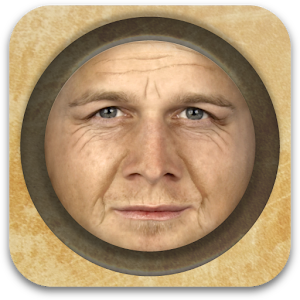 We started by writing about what we would do when we are 100 years old. The ideas that the kids came up with were just adorable!! After we finished our writing, we took our pictures with the Aging Booth app which automatically aged us and saved them to the Camera Roll. The kids thought their pictures were hilarious! We had a lot of good laughs about how they turned out.

We then imported our pictures into the Chatterpix app. This app allows you to use any photo, then draw a line to make a mouth and then record your voice. You also have the option to add stickers, text, and frames to your photos as well as adding filtering effects (black and white, sepia, etc). I use the regular version of Chatterpix so that I have the option of sharing our projects via email. They also have a kids version, Chatterpix Kids, that does not have the sharing options. This is a very simple app to use and the kids were able to easily import their picture and record their story.
When we were finished with our project, we emailed them to our parents but also printed out our pictures from the Aging Booth app and displayed them in the hallway along with our writing for our parents and others to also enjoy during parent teacher conferences.


So without further a do.... from the 2014 archives......
I love appsmashing! This year for our 100th day of school we used 2 apps to help us publish our writing, Chatterpix and Aging Booth.
We started by writing about what we would do when we are 100 years old. The ideas that the kids came up with were just adorable!! After we finished our writing, we took our pictures with the Aging Booth app which automatically aged us and saved them to the Camera Roll. The kids thought their pictures were hilarious! We had a lot of good laughs about how they turned out.We then imported our pictures into the Chatterpix app. This app allows you to use any photo, then draw a line to make a mouth and then record your voice. You also have the option to add stickers, text, and frames to your photos as well as adding filtering effects (black and white, sepia, etc). I use the regular version of Chatterpix so that I have the option of sharing our projects via email. They also have a kids version, Chatterpix Kids, that does not have the sharing options. This is a very simple app to use and the kids were able to easily import their picture and record their story.
When we were finished with our project, we emailed them to our parents but also printed out our pictures from the Aging Booth app and displayed them in the hallway along with our writing for our parents and others to also enjoy during parent teacher conferences.
*****************************************************
2017 Update:
After students have created their ChatterPix projects, have them upload them into Seesaw as an easy way to share out with parents! Remember that you can also easily share your creations from Seesaw out to Twitter, Facebook, Google+ or Pinterest simply by touching the 3 dots under your item. The best part is, when your item is shared, it removed the identifying information including the child's icon/name and any comments that have been made.
If you're interested in the paper we used for this project and a banner that you can use to display these in the hallway, you can find them in my TPT store.
Also, don't forget about our 2nd Annual 100th Day Collaborative Padlet board. Come join the fun!

Sunday, January 29, 2017
100th Day Collaborative Fun

Last year my class created a Padlet board that we shared out with our school, parents, and our Twitter buddies in hopes of getting 100 posts for the 100th day. We surpassed that goal and had a great time reading everyone's posts. So 1 year later, I am again starting this project in hopes of stretching our reach even further!
We would love it if you (and your students) would jump on and add to our 2nd annual 100th DayPadlet board.
Please leave your name (students-1st names only please)
and what state you are from.

Sunday, January 17, 2016
100th Day Collaboration
It's just around the corner, the 2nd biggest holiday celebration in February (or maybe in January for your school)...

 This year my class is hoping to collaborate with classrooms around the world in our celebration and we hope you'll join us! Each year we talk about what we would do if we had $100 or what we wish we had 100 of. My guess is many of you use some of these same prompts during your celebrations.
This year we're hoping we can find out how other students answer these questions too. In fact, our goal is to get
 posts
posts
We've created a 100th day Padlet board and hope that you and your students will take some time to add your thoughts as well.
Feel free answer as a class or have your students post individually. Pick a prompt from any of the ones listed above or if you have others that you use feel free to share those with us too. Add a picture or just write your idea. We'd love it if you'd leave your name and state/country in the title box. Make it your own and join in the fun!
 |
| Click here to access the Padlet board |

Here is a poster you can print off or project with the Padlet board QR code. I also have this QR embedded right on the board.
I usually project our Padlets on my Smartboard and then have the kiddos come up and scan the QR code right from the board. Works great, easy to use and no printing necessary.
If you have any questions, don't hesitate to get in touch with me!
Wednesday, February 11, 2015
It's the 100th Day, the Techie Way!!
So the 100th day has come and gone, but not without a lot of learning and fun with a tech twist of course.
 This year, we worked to read 100 sight words. Knowing this day can be a lot of fun but a bit chaotic, I wanted to find a way to get the kids up and moving a bit so I used the QR code making website, Kaywa to create a QR code for each of our first grade and kindergarten sight words. I then taped 100 QR codes around our 1st grade hallway. Students worked in pairs to scan the QR code, read the sight word and then they wrote it on their clipboards. Scanning is totally simple. If you've never done it before, you'll need a QR scanning app. There are lots but I use I-nigma. I've used others but for various reasons this is my favorite at this point. After opening the app, student simply point the iPad camera at the QR code and the embedded text automatically shows up on the screen. To do the next word, students simply had to hit the back arrow. Easy-peasy!
 To modify the activity for my visually impaired student we also attached the braille for each of the words (so cool for all students to experience!) His group worked a little bit differently in that one of the students scanned the word and as they wrote it, he read the braille he then told them what the word was and they double checked each other to be sure they were right. It was awesome to watch this group work together and to know that the learning was appropriate for each person in the group.
 Students really enjoyed the activity and the buzz in the hall throughout the day was always full of excitement. After school, I even caught a group of four 4th grade girls going around and doing the activity as well! Never ceases to amaze me how QR codes and bring the engagement level from a 6 to 10.
Creating the QR codes is truly very simple using this website. It maybe took me an hour at the most to create all 100. It is simply a matter of entering the work, hitting generate, copying and pasting the QR code into a word document and then printing and cutting them out. Simple!

I plan to share this project with everyone for next year but need to make a few tweaks before I post it. Once it's posted, I'll add a link here to my TPT store if you'd like to try it for yourself next year and don't want to create the QR codes yourself.

 To modify the activity for my visually impaired student we also attached the braille for each of the words (so cool for all students to experience!) His group worked a little bit differently in that one of the students scanned the word and as they wrote it, he read the braille he then told them what the word was and they double checked each other to be sure they were right. It was awesome to watch this group work together and to know that the learning was appropriate for each person in the group.
 Students really enjoyed the activity and the buzz in the hall throughout the day was always full of excitement. After school, I even caught a group of four 4th grade girls going around and doing the activity as well! Never ceases to amaze me how QR codes and bring the engagement level from a 6 to 10.
Creating the QR codes is truly very simple using this website. It maybe took me an hour at the most to create all 100. It is simply a matter of entering the work, hitting generate, copying and pasting the QR code into a word document and then printing and cutting them out. Simple!

I plan to share this project with everyone for next year but need to make a few tweaks before I post it. Once it's posted, I'll add a link here to my TPT store if you'd like to try it for yourself next year and don't want to create the QR codes yourself.
Thursday, April 10, 2014
100th Day App Smash
I love appsmashing! This year for our 100th day of school we used 2 apps to help us publish our writing, Chatterpix and Aging Booth.
We started by writing about what we would do when we are 100 years old. The ideas that the kids came up with were just adorable!! After we finished our writing, we took our pictures with the Aging Booth app which automatically aged us and saved them to the Camera Roll. The kids thought their pictures were hilarious! We had a lot of good laughs about how they turned out.
 We then imported our pictures into the Chatterpix app. This app allows you to use any photo, then draw a line to make a mouth and then record your voice. You also have the option to add stickers, text, and frames to your photos as well as adding filtering effects (black and white, sepia, etc). I use the regular version of Chatterpix so that I have the option of sharing our projects via email. They also have a kids version, Chatterpix Kids, that does not have the sharing options. This is a very simple app to use and the kids were able to easily import their picture and record their story.
When we were finished with our project, we emailed them to our parents but also printed out our pictures from the Aging Booth app and displayed them in the hallway along with our writing for our parents and others to also enjoy during parent teacher conferences.

We started by writing about what we would do when we are 100 years old. The ideas that the kids came up with were just adorable!! After we finished our writing, we took our pictures with the Aging Booth app which automatically aged us and saved them to the Camera Roll. The kids thought their pictures were hilarious! We had a lot of good laughs about how they turned out.We then imported our pictures into the Chatterpix app. This app allows you to use any photo, then draw a line to make a mouth and then record your voice. You also have the option to add stickers, text, and frames to your photos as well as adding filtering effects (black and white, sepia, etc). I use the regular version of Chatterpix so that I have the option of sharing our projects via email. They also have a kids version, Chatterpix Kids, that does not have the sharing options. This is a very simple app to use and the kids were able to easily import their picture and record their story.When we were finished with our project, we emailed them to our parents but also printed out our pictures from the Aging Booth app and displayed them in the hallway along with our writing for our parents and others to also enjoy during parent teacher conferences.
Sunday, February 5, 2012
100th Day

It's the 100th day... well almost, but I'm gearing up. This year I am going to try and embed a little bit more technology into our day.
One of the activities we will be utilizing is commenting on our classroom blog. After my previous ramblings and networking with a couple of other 1st grade teachers on my PLN (Thanks Laurie, from MorningSunFirstGrade), I am in the process of investigating and setting up a KidBlog but it won't quite be ready by Tuesday, so we're going to leave our responses as comments on our classroom blog, The Dog Blog. My question for them is simply, "What did you like best about the 100th day?" Not very creative, but I want something simple that they can be successful with , especially since I will have 6 kiddos from another class joining us during this time that are not familiar with our blog.
I also plan to use the awesome SMARTboard lesson that I bought last year from Smart Lesson Stop called Hip, Hip, Hooray It's the 100th Day! If you haven't checked out their site, it's worth the trip. Lots of great, well made SMARTboard lessons all for the low price of $2.50. I love making my own files, but sometimes it's nice to find something different to mix it up a bit.
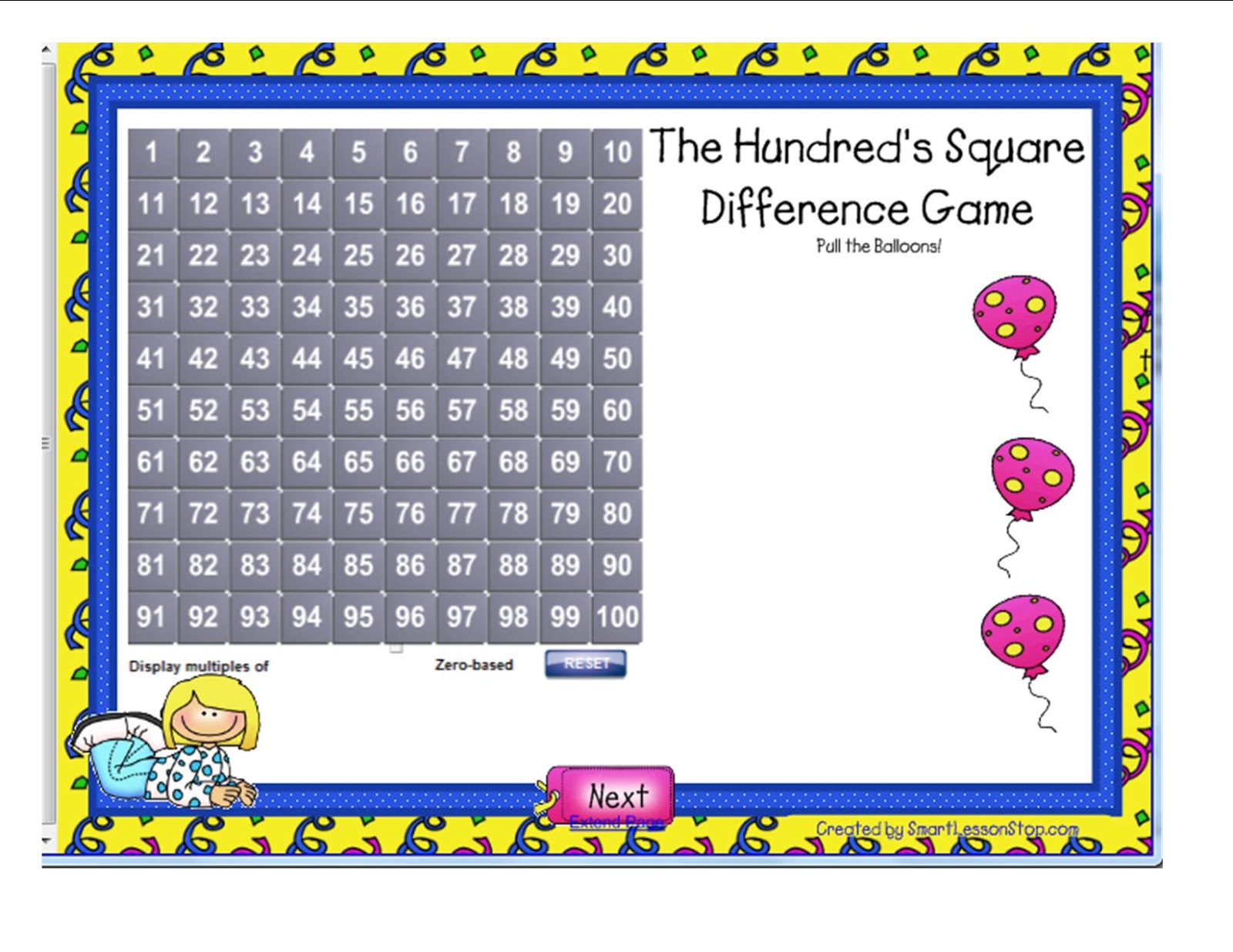 This page of the file has kids highlight 2 numbers on the interactive hundred grid and then find the difference. This ties in well with our math lesson as we just finished learning about differences. I plan to use this page in a little bit different way as well. I bought 100 Pixie Sticks for my kiddos and numbered each one of them. (shhhh... they don't know yet so if you're reading this, don't tell them!) I plan to hide them around the room during lunch on Tuesday and then we'll have a scavenger hunt to find them all. As we find them, the kids will need to bring me the Pixie Stick and flip the number on the hundred grid that they found. This will be great for a couple of my kiddos that still need help locating numbers on the number grid, and for the rest of us, a little bit of fun.
 Looking for some other great ideas for your 100th day? Check out this website, Technology Rocks, Seriously. Always some great sites and ideas to check out here!
Happy 100th Day!
Subscribe to:
Posts (Atom)