Tuesday, October 18, 2016

Looking for ways to use Seesaw?

Over the summer months Seesaw put out a challenge on Twitter and on our Ambassador Board to see if we could collaboratively come up with 100 ways to use Seesaw. What came from that collaborative effort is amazing! If you're a Seesaw user and are looking for ways to embed your usage into your curriculum in more ways than just sharing pictures,  click on the link header above or the link below to see some of the wonderful and creative ways that Seesaw can transform the learning in your classroom. I encourage you to print this resource off and tuck it into your planning book so you can refer back to it for ideas.

100 Ways to Use Seesaw

Sunday, October 16, 2016

50 Computer Lab Favorites

One of my Twitter buddies, @bhopteacher, shared the following Scholastic site with me. It has 50 one-stop learning activities for both grades K-2 and grades 3-5! You can toggle between language arts, science, social studies, math, and Spanish. 


Click image to access site

Looking at the K-2 social studies tab led me to an entire wheel of various occupations such as police officer, utility worker, pizza maker, fire fighter and more. When you click on the tabs you are taken to a Community Club Listen and Read site like the one to the right. This would definitely be a great resource when studying communities and careers


 On the  3-5 science wheel there are tabs for building a food web, states of matter, building a caterpillar and so many more.  When clicking on the states of matter spot, I was take to the Study Jams site to learn about solids, liquids, and gases. Included were a video, a karaoke song, a small quiz as well as key vocabulary. 


Take a peek for yourself and see what you may find to complement your curriculum.

Saturday, October 15, 2016

Seesaw Intro for Parents

Have you started to explore the wonderful possibilities of Seesaw in your classroom? Parent-teacher conferences are right around the corner which means a perfect opportunity for you to share Seesaw with parents and give them their QR code invitation or if you've already invited parents, a great time to get those last few parents on board.

Seesaw has put together a short, simple video to introduce parents to the power of this wonderful learning tool.  Sending a link to this video or having the video available for parents to watch while they are waiting for their conference might be a great way to introduce them.


If you work in one of my buildings, I am also happy to help parents get on board with Seesaw on conference night. Feel free to print off the QR code sheet for parents, share it with them at their child's conference and have them find me in the library and I'd be happy to help them download the app and get on board so they will be ready to roll when they walk out the door. 
My conference schedule is: 
Wednesday- Lannoye
Thursday- Hillcrest

Monday, October 10, 2016

Tech Tips for Teachers

As I was surfing the web this evening I came across this wonderful infographic by Kasey Bell from Shake Up Learning

So often we think of tech integration as being such an enormous, sometimes monumentous task, when truly it doesn't have to be, nor should it be. Great tech integration in my opinion is a way to engage students, a way to encourage student collaboration, and simply another tool that helps us to meet our objectives.
I encourage you to look at these 10 tips and remind yourself that it's ok to start small but at the same time, take a risk and get out of your comfort zone. You will be surprised at what will happen in your classroom when you embrace the 10 tips above.

Saturday, October 1, 2016

#EpicPals October is now LIVE

EpicPals October is ready to go! 

Click on the link or the picture below to access this month's Google doc (both the primary and intermediate versions are on the same doc). I did add one read aloud selection again this month to the primary version to give our younger students a bit more support as we start the year out. The selection can also be read without the read to me support if you prefer. Thanks again to my Twitter buddy who I've never met, Bobbie Hopkins (@bhopteacher), who is collaborating with me to bring you the intermediate version each month. Thanks Bobbi!!!!  


**Super Duper Update for this month**


Epic Books recently released the ability to create collections.  By using collections, I can now create a collection of all 5 books for the month in one area and share them publicly. You will be able to go into the search window and type in the name of the month's collection to access it. Each collection will be named EpicPals (no spaces), the name of the month, and primary or intermediate version (ie: EpicPals October Primary version). If you just type in "EpicPals" you will see all of the months- both primary and intermediate versions.

But it gets better... 
Once you type in and find the month's collection,  click on "copy" and it will make a copy and put it into your library.

Get ready, I'm not done- here's the real game changer...

Once you have it in your library, you can then click " Assign" and you will have the option to share it to any or all of your students.  


Your students will see a little red badge on their mailbox telling them they have mail and when they open it they will see the collection waiting for them. 


Now all your students need to do is click on the pics to go the books. No more typing in the book titles to try and find the month's selections!!!! Wahoo!! Things just got TONS easier for our early primary students! 

When collections are created, Epic does need to approve them before they are live for the entire Epic community to access, so if you don't see our October boards when you try this, check back in a couple of days as they have told me that they will expedite getting our collections pushed through so we can give it a try this month. I will work to get the collections in a bit sooner in the coming months so we won't have the lag.

I will also post each month's collections on my #EpicPals Pinterest board as another option to access the collection. Both of these will be great tools to make the project more efficient. I'd love to hear your feedback if you give this a try. Always good to know what works best so we can continue to tailor the project as we move forward.


Brand new to the project? 

Click pic to access the EpicPals Google Doc
Here's what you need to know....

First, decide how you want to use the project with your class. Seeing as it's the beginning of the year, you may want to use this opportunity to model finding books on Epic and enjoy them one or several together as a class. Model how to use the QR codes to get to the Padlet board and model how to leave a quality response. (You may also want to cover some digital citizenship skills by reminding your students to only leave their first names and state abbreviation on their Padlet posts.)

As the year goes on, many have used this project as a way to challenge their higher level readers or as part of a guided reading group, or even as a weekly whole group read-aloud and then have students leave their own comments on the Padlet. 

After you know how you want to utilize EpicPals, click on either of the pictures on the right to access the Google doc and print off the version that works best for your classroom. Decide if you want to post one on your classroom wall or make multiple copies for your class or utilize with just specific students. Starting this month,  you will be able to choose from a primary or an intermediate version depending on the reading abilities of your kiddos. Feel free to use one or both with your class depending on individual student need- both are located on the same Google doc.

When students are done reading the book selection, they will scan the coordinating  QR code on their sheet (no url's for our young learners!). This will take them to a Padlet board specific for the book they read. If you'd rather push this sheet out to your students on your blog, Google Classroom, etc,  the url's shown are clickable and linked to the boards as well so must make a copy of the doc and send if you need to


TIP:
If using iPads, download the free Padlet app. When kids click on the app (they do not need to sign in) they can scan the code right in the app and easily access the boards. This works MUCH better than scanning with a QR reader and accessing.

As your students begin to post on the Padlet boards, please don't be overly concerned about spelling. This is meant to be a place where kiddos can read and respond to text authentically. I do check the boards every few days to double check content and any questionable phonetic spelling. (The links to these boards are not public or searchable- you must have the link to access them)

How students should respond on the boards?
That's really up to you. What's best for your learners? Are you learning about text-to-self connections, retelling, summarizing or simply writing complete sentences to share your favorite part?  Be creative, utilize the boards to match your learning objectives. Feel free to have your students include images or screenshots or create and upload video reflections- the sky's the limit. Most important, have fun with this!  I will at times put a question on the Google doc or on the Padlet for students to think about but these are simply springboards if needed and are NOT required.

Do we have to read the books on Epic?
If you have access to any of the books in another format, feel free to utilize ti. Books do not have to be read on Epic although I will say my class is so completely engaged when using Epic know that they have the ability to also earn badges for reading (using iOs devices). Gamification is a wonderful motivator and engagement factor!

Do we have to do all of the books and do we have to do them in order?
No, you can do any or all of the books and there is no particular order. Let your students' interest gauge where they start.  Again, make this fit your schedule and your learners. 


Have fun! If you have any questions, please don't hesitate to get in touch with me. You can email me at sjmalchow@pulaskischools.org 
or catch me on Twitter-@smalchow


*You can also contact Bobbie Hopkins with any questions regarding the intermediate version. You can reach her on Twitter as well @bhopteacher


If you've not used Epic Kids Books, it is free for educators- so run, don't walk, to check it out!! If you're interested in learning how to set up individual student accounts, click here to access some screen shots that will help you through the process.

Saturday, September 3, 2016

Apps for Daily 5 (1st grade)

Daily 5 is a huge part of our day in first grade and is a time that students are working independently while I work with small guided reading groups. As anyone who teaches young children knows, this can be one of the best times of the days for both students and teacher or the most disastrous if your students struggle with independent work habits. 

As mentioned in my previous post, "Creation Apps Are Where It's At", creation apps are a majority of what we use and that holds true for a majority of my Daily 5 rotations as well. Don't get me wrong, as you will see, I do have some skill-based apps in this area as well, as I do believe there is a time and place for skill-based apps.

So, as promised here are the apps that my students utilized for Daily 5 time. 

The first picture below is a look at our main D5 page. As you can see, this page is categorized into folders to help students know which apps fit the Daily 5 area that they chose. I have screenshots below of each of these folders as well so you can better see what was in each one. Like my previous creation apps post, I won't go into specifics of each app. Although this is our D5 page, kiddos also used creation apps from the Creation page such as PicCollage, BookCreator, and Drawing Pad to show their learning at the area they were working at. I should also mention that my students had options for all Daily 5 choices that were not tech based as well. For example, for my Word Work station, we had a set of "Rainbow Drawers" that had a variety of options as well such as building sight words with popsicle sticks or using rubber stampers. This post is simply about sharing the apps that were part of their choices.
Daily 5 main page
Read to Self-
Epic!- Our main go to for Read to Self time (not including our Browsing Boxes of just right books) was Epic! This is a  FANTASTIC, FREE site for educators that offers great quality ebooks. (You can access Epic on iOs, web based-including Chromebooks, Android and Kindle) As a teacher you will set up a classroom profile with each students' name. When kiddos access their profile for the 1st time, they will pick from a variety of interests such as: sports, adventure, mysteries, etc and then Epic will provide recommendations for them based on their likes. Epic also offers Read to Me selections which is great for our early readers who just aren't quite able to read on their own. What a great way for them to have the extra support and feel just like their peers by using the same app. As students read they will earn badges for a variety of reasons (they read on Earth Day, read 5 days in a row, favorited a book and more). As they move up levels they will also unlock a variety of options to customize their avatars ( My kiddos loved getting to Level 21 when they could say they were a "Book Boss"!). My 1st graders were so motivated by the gamification aspects and as a teacher I loved that the gamification did not overshadow the true purpose for using Epic. I truly can't say enough about Epic and the variety of features available to teachers and students. It is DEFINITELY one that you want to investigate. In the future I'll be doing a post about some of the additional features that are AWESOME for teachers such as creating collections. Students were also able to participate in the #EpicPals reading/Padlet board project during their Read to Self time. If you want to know more about that click here

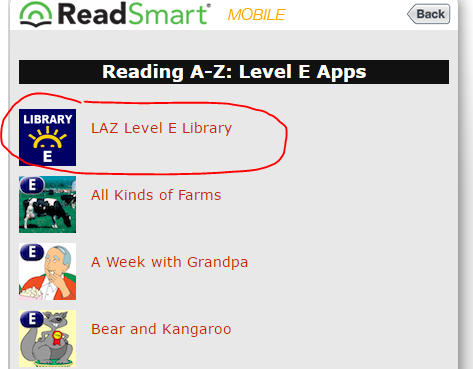
The first folder above, the "Read to Self E-J" was a folder that had leveled book apps from Reading A to Z. I had purchased several copies of the level E to J apps and kiddos could access these during read to self time. Here is a list of all of the levels and books in each level. If you click on the colored LAZ Level icon at the top of each list it will redirect you to the app store for each level. There are 10 books in each app, both fiction and nonfiction. The apps are a bit pricey at $6.99 each. BONUS- there is one free book for each level so you can take a peek and see if you feel it's worth spending the money. You can find those at the very bottom of each list. Again, if you click on that Free book, it will take you directly to app store to download. 

Word Work folder:
Word Work folder
Teach Me 1st grade- I've always loved the Teach Me apps. They have several levels including Toddler, Kindergarten, 1st grade through 3rd grade. The Kindergarten app is great for your very low kiddos coming into 1st grade and offers the same great format. Each app has several skills to work on and you can toggle them on and off depending on what you want your students to focus on. If you have shared devices this app is great since you can add up to 40 students. Students earn coins for correct answers and can then use their coins to buy virtual stickers, stretchy bands, etc. Again, a bit of gamification, but it does not overshadow the purpose of the app.

Word Bingo by ABCya- Practice reading and spelling over 300 Dolch sight words by playing 4 different games. My kiddos really enjoyed this and it is leveled by preprimer, primer, 1st grade, etc so kiddos can start on a level that is most appropriate for them. I found that 90% of my kiddos could start with this right at the beginning of the year. 

Making Words- I used this app during my intervention time more than the kiddos used it independently during D5 Word Work time, but it was a still a good choice for students. The app has 50 different word family lessons where students are told a word and then asked to spell it using the provided tiles on the bottom of the screen.


ABC Spelling Magic "ABC1"-This app focuses on learning to spell 3 letter, short vowel words. I found this to be a great beginning of the year app for kiddos.

Spelling Magic 2 "ABC2" This app focuses on learning to spell 4 letter, short vowel words.


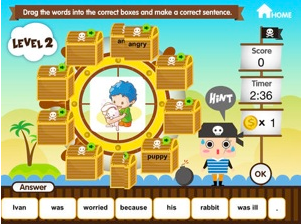
Jumbled Sentences 3 and 5 - You can read more about all 9 of these free apps. I also used this during my intervention time on occasion. It was a great option for helping students to create sentences using correct sentence order. There are 3 levels that offer various amounts of support. 

iSort Words- Again, this is one that I used on occasion with my intervention group. This app offers several different games to help students sort/recognize word families. Speed Sort, Swipe Sort (like Fruit Ninja), and Push Sort.

Reading Ninja- Slice your way through 150 different 3 letter words. Teachers are able to choose the difficulty level from easy to hard.

Magnetic ABC- the link is for the free version which only includes uppercase letter. My class used the paid version which includes upper case, lower case, numbers, and more. My kiddos would use this app to practice building word families or their spelling words and would then save their creation to the camera roll. From there they would add it to Seesaw and record the words that they built. Adding it to Seesaw was a fantastic way to hold them accountable and to give them additional practice reading their words.

Word Wizard- I found this app to be useful during Writer's Workshop in addition to Word Work time. When kiddos weren't sure how to spell a word, I asked them use this app and "Have a go" at the word. 

Tic Tac Toe Phonics - Great partner game to work on various word building activities. My kiddos really enjoyed this one and would even play it during indoor recess.

Lost on Prankster Planet- by the Electric Company. We used this app more as an educational indoor recess choice but it could easily be used during D5 times. This is a collaborative game and can be played with 2-4 players and covers various 1st and 2nd grade literacy and math curriculum.

Handwriting Folder:
Handwriting folder
Letter School- Seriously the most engaging handwriting app I've found. My kiddos LOVED this. Teacher can toggle on the format that their district uses (Handwriting Without Tears, DeNelian, ZanerBloser). This app uses the guided release of responsibility method to have students practice their letters. It's definitely one to check out!

Letter Reflex- Great app for your students that struggle with b/d, p/q that uses a Tilt It or Flip It activity. I love this app and have found students make gains with their visual perception. I didn't want my kiddos that utilized this app to over do it and become sloppy, so when using this app, they would grab a 3 minute sand timer and work for 1 or 2 flips of the timer. They often would do this after they were done eating their snack while they were waiting for the rest of the class to finish their snacks.

Dexteria- Helps with fine motor skills. Fun, game-based activities. This was developed by OT's to help kiddos with fine motor skills. Letter Reflex above is made by the same company. Both are great quality apps and worth the money for the students that need help in these skills.

Letter/Sound Folder
Letter Sound folder
This folder was used mainly at the very beginning of the year by most and for my most struggling readers for as long as needed as all of the concepts revolved around letter/sound relationships.

ABC Ninja- Letter identification. Students swipe the target letter. Teachers can toggle on/off which letters you want kiddos to focus on. I also used this with my b/d, p/q, n/u reversal kiddos and turned off all letters except for the b/d or whatever letters they needed to focus on. I did this after we had done several activities together that they could scaffold off of so they could be successful. 

ABC Magic 4- Students match pictures to beginning sounds in several different formats.

Sound Sorting- by Lakeshore Learning. I LOVE this app and highly recommend it for the beginning of the year. It is a GREAT complement to Words Their Way alphabetic sorts. Students choose 3 pictures (letters) to start. They are then given 9 different picture balls which they must drag to the correct matching picture. My kiddos really loved this one. I also used this after doing Letter/Sound testing (PALS testing) at the beginning of the year by tracking which sounds students were missing. I would then have a parent helper of one of my parapros work with kiddos on the sounds they struggled with. We would choose 2 sounds that they struggled with and 1 sound that they already were secure. Doing this always gave them built-in success along with working towards securing sounds they didn't know yet.


ABC Magic Phonics 3 "ABC3" In this app only the 'sounds' of the letters are used not the letter names. I found this to be a nice progression for kiddos as we were working through letter sound correspondence.

Work On Writing:
Since you can't put apps in 2 places, we didn't have a Work on Writing folder. The Write About It app was the only Work on Writing app on our D5 page. Many of my students used Book Creator to write their own stories during Work on Writing time. Our Work on Writing station was probably the most popular area to go.
 
Independently done Minecraft story done in Book Creator
during Work on Writing time.

Student chose to independently add on to his plant 
journal during Work on Writing time. 

Write About it- This app gives kiddos a picture along with a writing  prompt. My kiddos often didn't care for the prompts or didn't have enough background knowledge or skill base to write about the prompt provided so I allowed them to  use the picture as their prompt but then write about it how they wanted.

If you have any questions about the apps listed above or need more information on how we used them in class, please don't hesitate to get in touch with me.
I will admit  that it does take a little more time to get your Daily 5 rotations up and going but I found that in the long run I got SO much more out of my kiddos and they were excited and engaged during Daily 5 time which gave me more quality time to read with kiddos during guided reading groups instead of playing police officer.


I'll share apps that we used in math (both creation as well as specific skill-based apps) in an upcoming post