Thursday, November 17, 2016

Epic! just released an Epic update!!

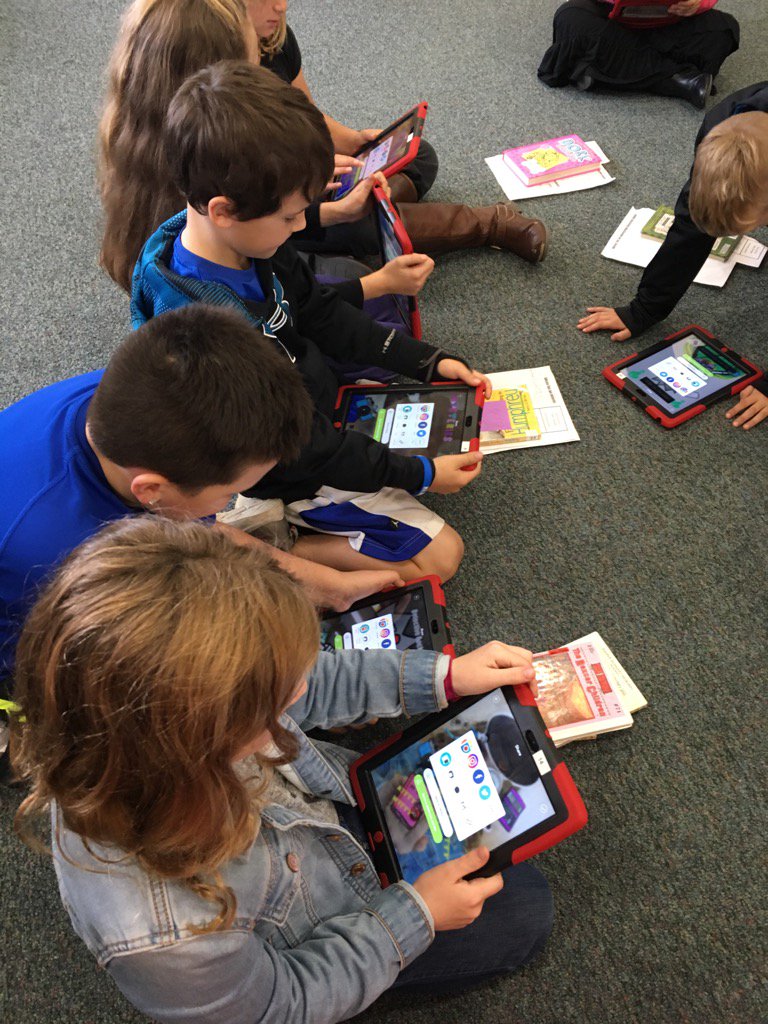
Epic has done it again! Yesterday they release an update with several new features/enhancements, but the one that I am most excited about it  Voice Search. Students now have the ability to click on a microphone in the search bar and and say the title of the book or topic they are looking for. This is going to be such a game changer for our youngest learners as their writing ability will no longer be a hindrance when trying to independently use Epic!                                                                                 I tried this new feature out yesterday and searched for alligators as well as Robert Munsch and was succesful finding books with both searches. I am so excited to see the positive impact this will have on not only our youngest students, but even our upper grade students who struggle with their writing skills.
Thank you Epic for always listening to teachers and their requests! This will definitely have a lot of us jumping for joy and doing a happy dance!

Wednesday, November 16, 2016

BreakoutEDU rocks!


Have you ever participated in a BreakoutEDU?

 The 5th graders in one my buildings had their first exposure to this innovative style of learning! In order to be successful, students had to put their collaborative, problem solving, critical thinking, teamwork skills to the test AND they had to do it in 45 minutes!

Here's a quick video that I put together to showcase the event


If you're interested in learning more- check out the BreakoutEDU website

Sunday, November 13, 2016

I am thankful for... PicCollage

Hard to believe that Thanksgiving is just around the corner! I truly can say, I don't know where this year has gone. As i reflect back on the past few months I have much to be thankful for including my health, my family, and my new job-which I am really enjoying.

As a (former) first grade teacher, we often spent some time discussing the things we were thankful for and incorporated our ideas into some small writing project. Today when I checked my email I found that Melonheadz Illustrating had added their Thanksgiving coloring page freebie to TPT! Melonheadz is one of my favorite clip art creators, and yes, I AM an Official Melonheadz Addict)!!


Click the image above to access the free download on
the Melonheadz TPT store
I soon as I saw it, I knew I needed to send the link on to my colleagues as it was just too cute to not pass along, however,  the more I thought about it, the more I started to think about ways that I could enhance it just a bit by integrating a little technology. 

I thought of two things- both pretty simple, as I didn't want to take too much time out of learning time and wanted it to be something that could be done with a limited number of iPads as well.

My first thought, which is very simple and provides an easy integration idea for our youngest learners, is to simply have your students color the picture and write or draw the things they are thankful for using the template as is. When done, have students take a picture of their paper, upload it to Seesaw, and then use the recording tool to tell their parents the things they are thankful for.


My son and I colored this example together and he then
uploaded and did the PicCollage part
For those comfortable with taking it one step further, I thought of a way to app smash it with PicCollage. Start by having your students color their paper but leave the "I am Thankful for" area empty. When they are done coloring, have them snap a picture and upload it into the free PicCollage app. Once the picture is uploaded, rotate it so it's in landscape format, tap on the picture and touch "Use as Background". Now have students use the text tool, stickers, and web search to add items that they are thankful for to the empty space. When done, save it to the camera roll and upload it into Seesaw where again, students can share it with their parents and use the recording tool to tell more about their items.  You can also upload to Seesaw directly from PicCollage but we have found the workflow easier for students to add it to the camera roll and upload from there. 

Want to print your pics or put them all into a slide show?
After saving to the CameraRoll have students AirDrop their completed projects to you so that all of the pictures are now on your device and you can send to the location you need to print. Need help with AirDrop? Check out this post.

If you use this idea, I'd love to see some of your finished creations. Tweet them out using the hashtag, #DigitalThankfulFor OR tag me in the photo (@smalchow)

Friday, November 11, 2016

Air Drop to the rescue!

Over the past few weeks my students have become increasingly confused when using our library shared iPads. Inadvertently some of the kiddos have clicked on the update to iOs 10 button and now some of the iPads "Slide to unlock" while the newly upgraded iPads require you to press the home button to unlock. Ugh!

With the blessing of our tech department, it was time to get them all switched over to iOs10 so we could have some consistency once again. I also had the grandiose idea wanting to add a little more consistency as all of our screen savers were different as well so I decided to add add a home page screensaver with the number of the iPad and a lock screen image with our iPad expectations. 


With as busy as I've been, I didn't have time to create my own so I went in search of a premade template and found these movie themed backgrounds and Super Hero backgrounds by Erintegration that were fun looking, gender neutral and not too primary looking since our library iPads are used by K-4. Erih has great directions for getting these on to your iPads, but with having to do 43 iPads between my 2 buildings, I needed something faster.... enter Air Drop!!!

If you've not used AirDrop, it's a great way to get pictures from one iPad to another quickly and easily which has wonderful benefits when needing to get pics to students to create projects or alleviate image searches for youngers. This is handy when needing to share field trip pictures from one iPad to many or wanting to have your device preloaded with pictures for your word sort, etc. (Side note: AirDrop works on iPad 4s and later and you have to be running iOs 7 or later)


To share content you need to first swipe up from the bottom of your screen to open your control center. Tap on Air Drop and then choose an option- I chose AirDrop: Everyone as the shared iPads are not part of my contacts. (On my personal device, I leave this as Contacts Only and switch to Everyone only when needed) 


Next, go to your photos and tap on the content that you want to share. Once you've made your selections,  touch the sharing arrow in the top, left corner.
After you click on the sharing arrow you will see a list of devices that are available to Air Drop to. Click on the devices you want to share your content with. If you don't see the device you are wanting to send to, make sure that the device is powered on and that the AirDrop settings for that device are also changed to Everyone.

On the receiving iPad you will see a pop up like this one asking if you want to decline or accept the photos. Once you accept, the photos will be placed in your camera roll. Easy Peazy!!  After doing a couple, I found a great way to set my devices up so that I basically had a processing line set up and I was able to get all of the iPads done in about 30 minutes! Awesome! And they look great! The excitement from the kiddos siad it all when they powered them on for the first time and didn't realize what I had done- LOTS of ooohs and ahhhs!!
This also works great in reverse as well.  After sharing this information with my staff, one of the teachers asked if her kiddos could AirDrop their finished detective PicCollages from our shared iPads directly to her teacher iPad rather than sending her an email- guess what? Yup! They sure could and it made things easier for her as she didn't have 15 emails to sort through but rather had all 15 right in her camera roll ready to use as she wished!!!!


Here are the directions in a quick format:


Friday, October 28, 2016

Ready to Rock with #EpicPals November?


EpicPals November is ready to go! 

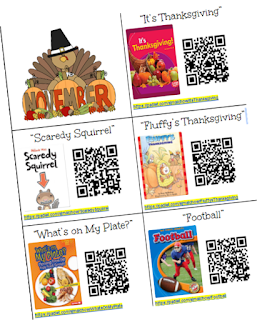
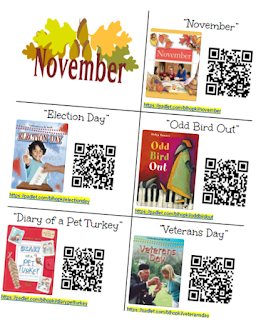
Click on the link or the picture below to access this month's Google doc (both the primary and intermediate versions are on the same doc). Thanks again to my Twitter buddy, Bobbie Hopkins (@bhopteacher), who is collaborating with me to bring you the intermediate version each month. Thanks Bobbi!!!!  


**Super Duper Update**


Epic Books recently released the ability to create collections.  By using collections, I can now create a collection of all 5 books for the month in one area and share them publicly. You will be able to go into the search window and type in the name of the month's collection to access it. Each collection will be named EpicPals (no spaces), the name of the month, and primary or intermediate version (ie: EpicPals November Primary version). If you just type in "EpicPals" you will see all of the months- both primary and intermediate versions.

But it gets better... 

Once you type in and find the month's collection,  click on "copy" and it will make a copy and put it into your library. Once you've copied it you also have the ability to edit it so if you want to add information or an assignment for your kiddos such as: "Please choose 3 of the 5 books to read and respond to" you can and your kiddos will see that new information.

Get ready, I'm not done- here's the real game changer...


Once you have it in your library, you can then click " Assign" and you will have the option to share it to any or all of your students.  


Your students will see a little red badge on their mailbox telling them they have mail and when they open it they will see the collection waiting for them. 


Now all your students need to do is click on the pics to go the books. No more typing in the book titles to try and find the month's selections!!!! Wahoo!! Things just got TONS easier for our early primary students! 

I will also post each month's collections on my #EpicPals Pinterest board as another option to access the collection. Both of these will be great tools to make the project more efficient. I'd love to hear your feedback if you give this a try. Always good to know what works best so we can continue to tailor the project as we move forward.


Brand new to the project? 

Here's what you need to know....

First, decide how you want to use the project with your class. Seeing as it's the beginning of the year, you may want to use this opportunity to model finding books on Epic and enjoy them one or several together as a class. Model how to use the QR codes to get to the Padlet board and model how to leave a quality response. (You may also want to cover some digital citizenship skills by reminding your students to only leave their first names and state abbreviation on their Padlet posts.)

As the year goes on, many have used this project as a way to challenge their higher level readers or as part of a guided reading group, or even as a weekly whole group read-aloud and then have students leave their own comments on the Padlet. 

After you know how you want to utilize EpicPals, click on either of the pictures on the right to access the Google doc and print off the version that works best for your classroom. Decide if you want to post one on your classroom wall or make multiple copies for your class or utilize with just specific students. Starting this month,  you will be able to choose from a primary or an intermediate version depending on the reading abilities of your kiddos. Feel free to use one or both with your class depending on individual student need- both are located on the same Google doc.

When students are done reading the book selection, they will scan the coordinating  QR code on their sheet (no url's for our young learners!). This will take them to a Padlet board specific for the book they read. If you'd rather push this sheet out to your students on your blog, Google Classroom, etc,  the url's shown are clickable and linked to the boards as well so must make a copy of the doc and send if you need to


TIP:
If using iPads, download the free Padlet app. When kids click on the app (they do not need to sign in) they can scan the code right in the app and easily access the boards. This works MUCH better than scanning with a QR reader and accessing.

As your students begin to post on the Padlet boards, please don't be overly concerned about spelling. This is meant to be a place where kiddos can read and respond to text authentically. I do check the boards every few days to double check content and any questionable phonetic spelling. (The links to these boards are not public or searchable- you must have the link to access them)

How students should respond on the boards?
That's really up to you. What's best for your learners? Are you learning about text-to-self connections, character traits, retelling, summarizing or simply writing complete sentences to share your favorite part?  Be creative, utilize the boards to match your learning objectives. Feel free to have your students include images or screenshots or create and upload video reflections- the sky's the limit. Most important, have fun with this!  I will at times put a question on the Google doc or on the Padlet for students to think about but these are simply springboards if needed and are NOT required.

Do we have to read the books on Epic?
If you have access to any of the books in another format, feel free to utilize it. Books do not have to be read on Epic although I will say my class is so completely engaged when using Epic know that they have the ability to also earn badges for reading (using iOs devices). Gamification is a wonderful motivator and engagement factor!

Do we have to do all of the books and do we have to do them in order?
No, you can do any or all of the books and there is no particular order. Let your students' interest gauge where they start.  Again, make this fit your schedule and your learners. 


Have fun! If you have any questions, please don't hesitate to get in touch with me. You can email me at sjmalchow@pulaskischools.org 
or catch me on Twitter-@smalchow


*You can also contact Bobbie Hopkins with any questions regarding the intermediate version. You can reach her on Twitter as well @bhopteacher


If you've not used Epic Kids Books, it is free for educators- so run, don't walk, to check it out!! If you're interested in learning how to set up individual student accounts, click here to access some screen shots that will help you through the process.

Tuesday, October 25, 2016

Need to add a shared calendar to your view?

How to Install a Shared Calendar (iPad cart, Chromebooks,etc) 

If you need to use the Chromebook carts, Libary iPads or even the library classroom, PLEASE sign up on the appropriate shared calendar for your building. If you are not seeing the calendars that you need, click on the image above to access the School Resource Calendars. You will also find the directions (circled in yellow above) on how to add the calendars. It is super easy once you're on this page. If you need help, please don't hesitate to ask. I'm more than happy to walk you through it.

This information will also be located on the Tips, Tricks and Troubleshooting page for easy reference.