Tuesday, November 15, 2011

Word Work with a Tech Twist

I am working to embed multiple technologies into our Daily 5 Word Work routine to give students a more hands-on, multiple intelligence approach to learning and practicing our high frequency words and our vocabulary words.

Smartboard games

Currently, students have several options available to them and I hope to add more as they are ready.
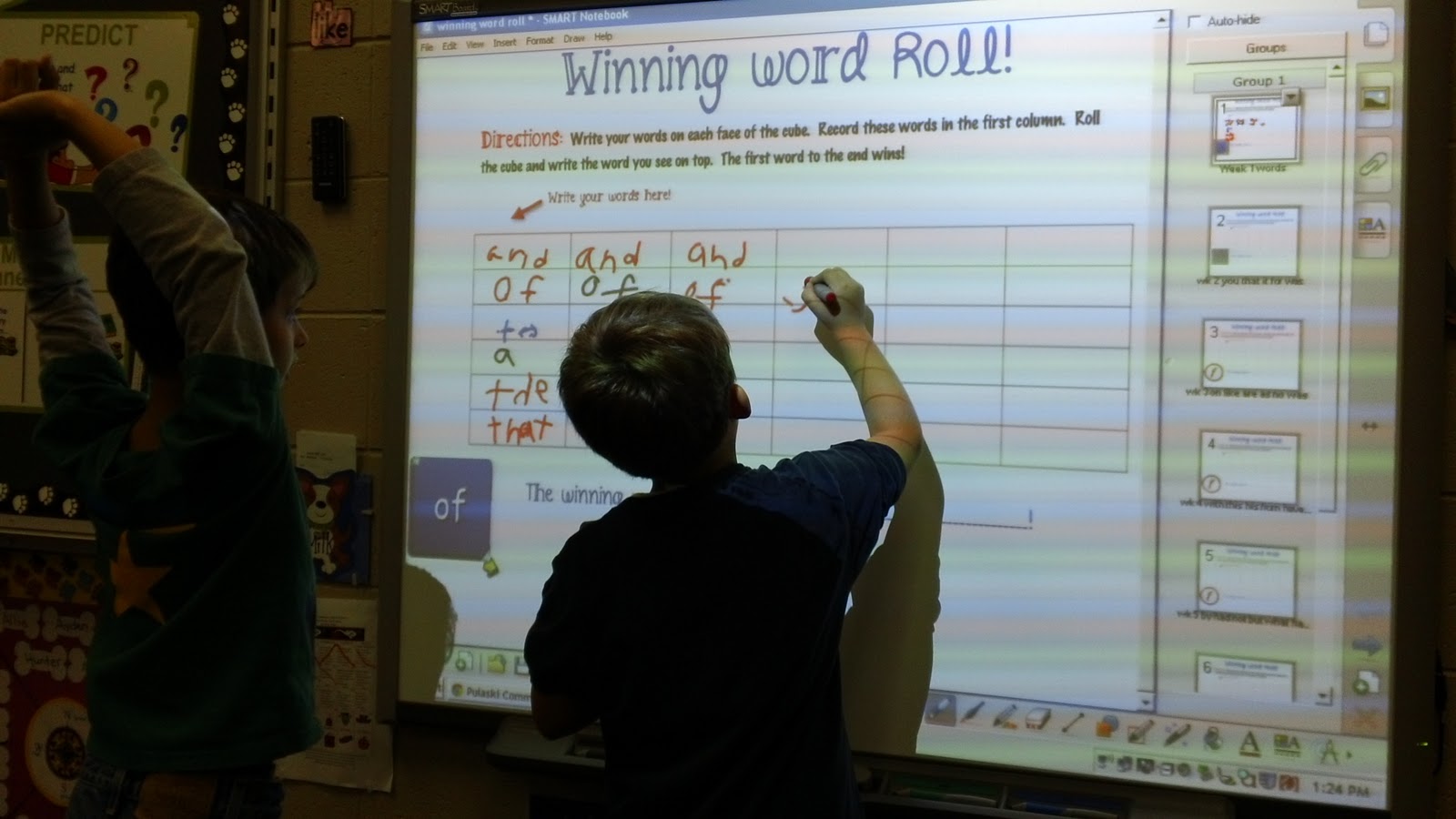
One of the current options is to use our SMARTboard to play various games that I have created or modified to go along with our weekly high frequency words and our Words Their Way sorts. I created a folder on my desktop that houses each of the files that my students are allowed to use at this time. When I first introduced this option, I modeled how to get into and out of each document, how to minimize what was currently on the board such as our D5 rotations documents, and how to solve little glitches that come up. My students have done a fantastic job of using this area independently. I only allow 2 kiddos on the board at a time.

using Prezi
 Another option, or rather once a week requirement, is using our iPad to review the week's vocabulary words from our reading series. I introduce the words whole group on the SMARTboard using Prezis that I have created. Students then grab an iPad at some point during the week to review our vocab Prezi at their own pace and then write them in their vocabulary notebooks using the Prezi Viewer app which is free!

The other option that my students have is to use their iTouch to work on various sight word based apps. Currently we are using Teach Me 1st grade and Word Bingo by ABCya. I have several other great apps but am introducing things slowly so that students are comfortable problem solving and are able to work independently so that I am able to meet with my guided reading groups.


At one point, I had given each of my students a Word Work 3 In A Row card which I had laminated. It was their job to X off their choice each day and when they got three in a row, they received a small prize. I strategically place my "have-to" areas (Vocab prezis) on the chart so that they would have to do it to get 3 in a row. I have since abandoned this as it was time consuming for the kiddos to go and get their sheet and X things off prior to starting. Not to mention, it was turning into a nightmare for me to manage. We now are checking in on the SMARTboard and kiddos know that if they choose Word Work that they need to pick one of the above options.
As glad as I am to be done with the wonderful idea, I do think that it had its benefits at the beginning of the year in giving my students a visual of all their choices. Will I use these again next year? Hmmm... ask me in the fall... still pondering that one or how I can tweak it just a tad to make it more manageable.

Monday, November 14, 2011

Voki intro


Excitement as the Voki comes together.
This week we learned about Vokis. We spent a bit of time learning the ins and outs of creating Vokis on the SMARTboard as a whole group last week. This week we went to the lab and spent a bit of time exploring and creating before students were asked to create a Voki that looked like themselves. This really got the creative juices flowing.


Totally engaged!

When students were finished, they  were to have their Voki talk by telling their name and something they liked by using the microphone option. We felt this would be the easiest for 1st graders to handle. Unfortunately, we ran into some technology glitches (love technology when it works, but a good lesson for the kiddos to learn... it doesn't always) so.. we'll try that again next time. Seeing as this was an exposure lesson for future projects we won't worry about it.

The kiddos really seemed to enjoy this project, and were thoroughly engaged for the entire time.
Check out a couple of our finished products. Can you see the similarities between the student and the Voki?
 
A striking resemblance don't you think?

Thursday, November 10, 2011

so sorry

What a CRAZY busy start to the school year! I can't believe it's November already and I am just now feeling like I am starting to get into a little bit of a swing with the Model Tech classroom. I've spent a considerable amount of time looking for apps that fit my curriculum in addition to many that I can use to help modify and reinforce learning for some of my out-of-sync learners.


With the little bit of extra time I've had after all of the other obligations (mentoring new teachers, meetings, new curriculum, meetings, family life, meetings, committee work, and did I already mention meetings?) I've been working to fine tune my classroom blog, The Dog Blog, while also posting regularly to keep parents abreast of all that we are doing in our classroom. Several of the projects we've done are featured, so feel free to stop over for a peek. Parents have been extremely receptive this year and had MANY positive comments at conferences!

My hope is to start  highlighting many of the apps and projects that we've done on this site in the coming days as well in a more teacher friendly format, so please stay tuned!

In the meantime, there are several free Everyday Math apps in the iTunes store though tomorrow, November 11th. See this post to see which ones are available. https://www.mheonline.com/apps

Wednesday, September 21, 2011

Apps, apps, and more apps

I think I am going app crazy, yes, I DID mean to say APP crazy!  Since getting my new iTunes acct 3 weeks ago, I have been using every spare minute I can find, which is usually around midnight when I finally crawl into bed, to look for apps that will coordinate with my 1st grade curriculum or will help me to modify where needed for some of my outlying students.
I have found some great apps, and at this point, everthing I've downloaded has been FREE!!!! I' hesitant to spend my little nest egg all out one time. Trying to be very frugal to make my money stretch as far as I can. 

Some of my favorites so far are:


DoodleBuddy- I am constantly thinking of new ways to embed this app which is simply a drawing app. My original thought was to have my kiddos use it during their Word Work Daily 5 rotation to practice their spelling words.
Today it dawned on me that I could use then in place of my mini whiteboards for my daily review/mental math. The only drawback would be that we are use iPod Touches which gives us a small writing/drawing area compared to the size of the iPad.

My next fave, is not an app, but rather an app developer called GrasshopperApps. They have a phenomenal library of mostly free apps including books and learning games. I am especially in love with their books. The reader has the option to either read the book alone or to have the book read to them as the words are read and highlighted. I am planning to embed these into my Daily 5 rotation as well but am still pondering my main objective for this app to determine if they would better fit into my Read To Self rotation or my Listen to Reading rotation. Maybe I'm thinking too much about that decision..... I'll have to think about that.... LOL
I'm sure I'll be discussing these apps quite a bit over the year as they offer such a great variety of topics that are so appropriate for the youngest learners. I also love, but have not experimented with this yet, that you can customize their apps including using your own voice, removing and adding pictures, etc. What a great way to tailor an app to your specific curriculum pieces (sight words, spelling words, etc) More on that in a future post.

My biggest dilemna that is still out there in front of me at this point is: how do I want to organize all of these apps on my mobile devices now so that kiddos will be able to quickly and easily find the apps I want them to focus on. Right now I don't see this being a huge problem, but as the number of apps increases along with the number of pages, I foresee needing a system.

I am also toying with the idea of how to organize these apps in an effective manner for me to best utilize them for a specific kiddos specific needs. I want to create some sort of a spreadsheet that will allow me to quickly find which app will best fit a certain learning target. I am especially seeing this with apps that cover multiple learning targets. I started to create file that correlated with our math report card goals, but have quickly realized that this format has a lot of limitations in that it will only categorize apps for secure, end-of-the-year goals.
APPS for 1st Grade Report Card Math Goals

Any thoughts from anyone that has used multiple apps with multiple devices?


Wednesday, September 14, 2011

Writer's Eye

Ok, this isn't high tech, but I am totally loving the start of my writing bulletin board this year. I can't remember where I saw the original idea, but one of my favorite blogs, The First Grade Parade, shared her printables for this bulletin board which I absolutely loved. You can find her printables here. I have many more things/anchor charts that will be added to this wall over the course of the year as it will be a work in progress as needed. I can't wait to create the writer's eyes that will actually go above the bulletin board as the eye catching pop (no pun intended) to grab students' attention.

Tuesday, September 13, 2011

iPods abound

Anyone that teaches 1st grade well knows why I haven't blogged lately... just toooooo busy! WoW!! We may be working on building stamina for Read to Self, but I need to build stamina for spending a day with 6 year olds! Whew! Love it, but wow have I been wiped this week!!
Last week we got the iPod touches out for the 1st time. We talked a lot about my expectations for how they should unhook them from the cart, carry them, and use them. We learned about the home button and that each little picture is called an app. Today just to get everyone use to how they work we used the note app and wrote our names, words we knew, etc. Some of the kiddos even started to write notes to each other. It was great to see the excitement and you could have heard a pin drop with the exception of the sharing of sentences. Some of the kiddos even figured out how to get their screens to flip horizontally. I'm excited to see what the future will bring with these wonderful tools in our classroom. The best part is, as of right now, we have 15 students and 15 iPods, so everyone has their own!
From a management standpoint, at this time I have a sticker on the back of each one which correlates to each of my students' math tool kit numbers. My plan is to have a jpeg image with each number as the screen saver but just haven't had the time as of yet. I also found out in a hurry that when having the kiddos put the iPods back into the cart to have them lay them in their corresponding numbered slot facing forward with the home button touching the number on the cart. This puts the iPods in perfect position to plug them in for charging and syncing. At this time, I am plugging them in but plan to eventually have a "Tech specialist" classroom job to help with that task.
I've found several great FREE apps already, including one called, Alphabet Tracing which is a great app for tracing letters.

My kiddos have had no problem maneuvering around the app including changing the color/texture that they wrote in.

This has been a great extension to our handwriting practice and although it may not promote good handwriting witih a pencil, as writing with your finger is a bit different, it certainly helps reinforce the proper formation of the letters, particularly top to bottom.

I'm looking forward to sharing more with you over the coming months! I am so blessed to have this opportunity and my class is all over this with excitement!